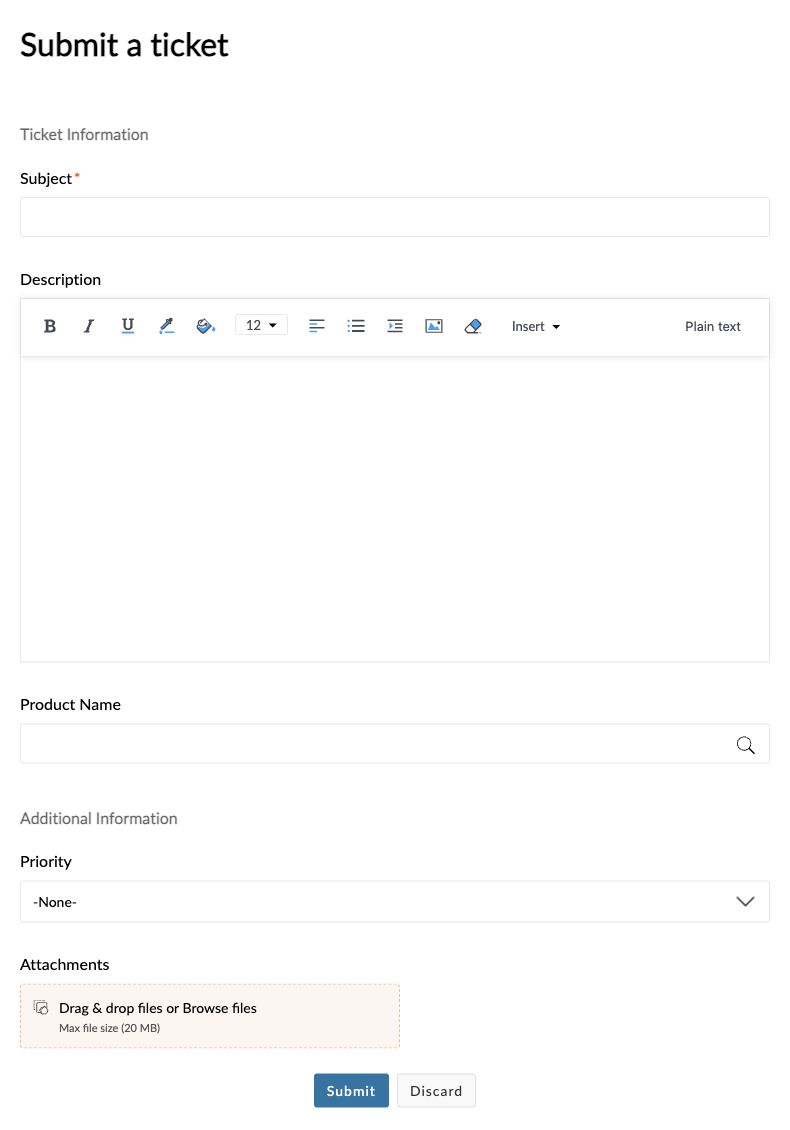
Cancellation and uninstallation are two different actions. If you want to stop future Premium renewals, cancel the recurring subscription in PRIKID.APP first. If you also want to remove the app from your BigCommerce store, uninstall it separately in BigCommerce.
Important: do not rely on uninstalling PRIKID.APP in BigCommerce to stop WayForPay renewal. Use the cancellation control in PRIKID.APP before uninstalling. If you already uninstalled and are unsure whether renewal was stopped, contact PRIKID support with the store domain.
Select a screenshot to enlarge it. On a phone, tap the opened image to zoom and drag to read wide screens.
Stop future Premium renewals #
- Open PRIKID.APP for the store whose renewal you want to stop.
- Choose App → Subscriptions, or open the subscription page while signed in to that store.
- If the WayForPay recurring subscription is active, select Cancel subscription.
- Read the confirmation carefully. PRIKID.APP shows the date through which your current Premium access remains valid. Select Cancel subscription in the confirmation only if you want to stop recurring renewal.
- After the page reloads, check for Your subscription is currently suspended. and the displayed paid-access end date. Stopping recurring renewal does not remove the Premium time you already paid for; access continues through that date while the app remains installed.
If the cancellation control is missing or an error appears: check that you opened the correct store. A Free account shows purchase controls rather than a cancellation button. If renewal still appears active, the page does not confirm suspension, or you cannot access the app, contact PRIKID support before assuming renewal has stopped.
Cancellation stops future recurring renewals; it does not automatically refund or reverse an existing charge. If you keep the app installed, the Free plan and its publishing limits apply after the paid-access end date; see Plans and Publishing Limits.
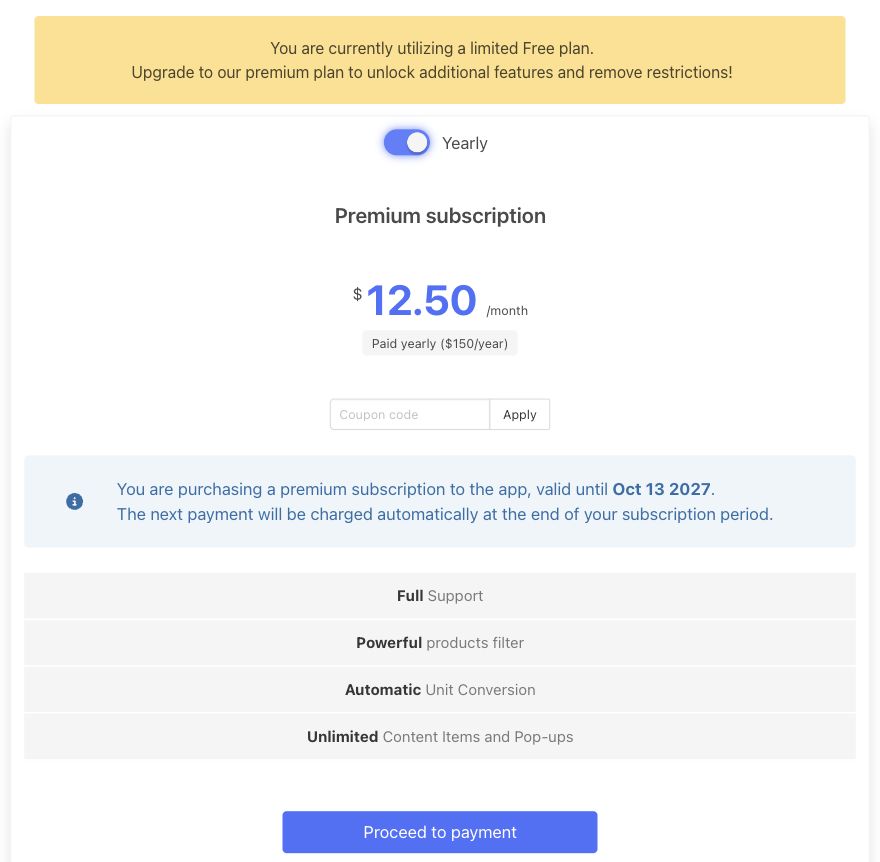
If you need help confirming whether a payment or renewal was stopped, see Billing, Payments and Invoices.
Uninstall PRIKID.APP from BigCommerce #
Uninstall only after you have dealt with renewal separately. Uninstall disconnects the app from the BigCommerce store; it does not replace cancellation of WayForPay renewal or automatically reverse an existing charge. The storefront script installed automatically by PRIKID.APP is configured to be removed with the app, so do not expect PRIKID size charts, popups, tabs or inline content to keep rendering after uninstall.
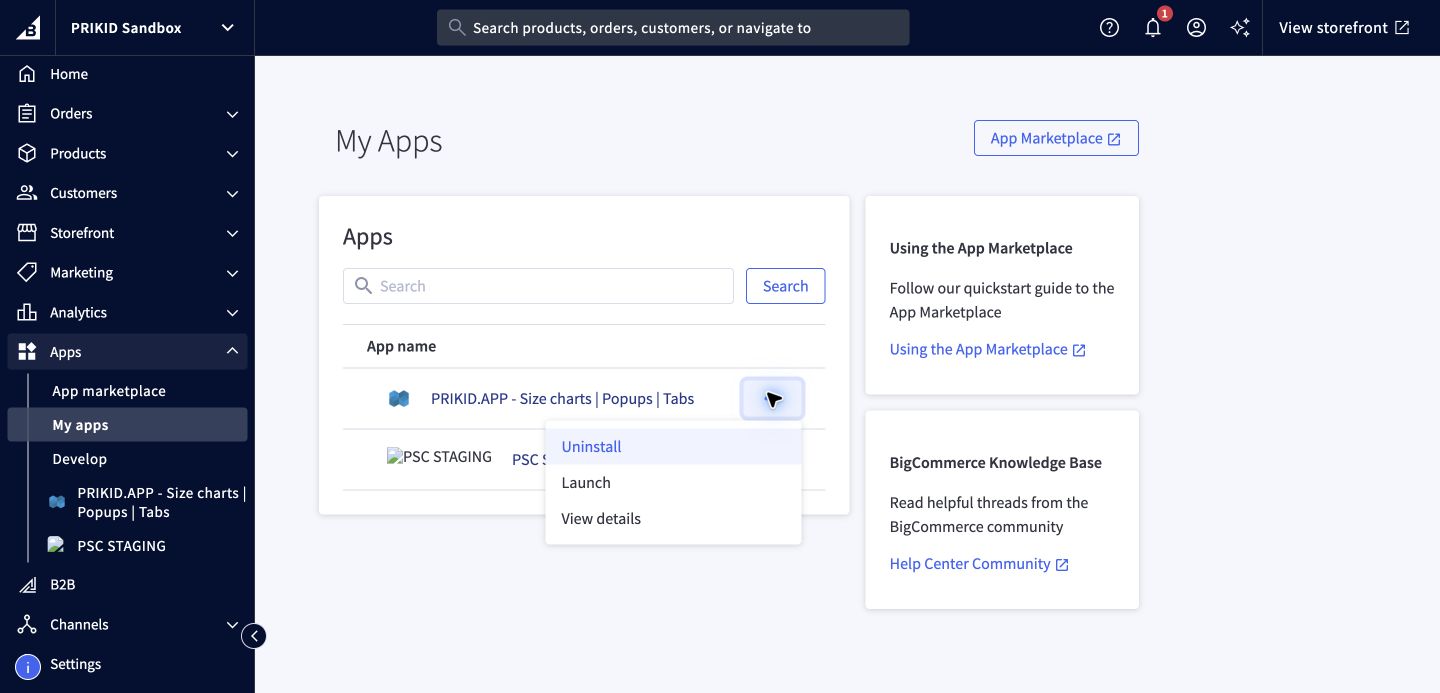
- In the BigCommerce control panel, open Apps → My apps.
- Find PRIKID.APP – Size charts | Popups | Tabs.
- Open More actions (the three-dot menu) and choose Uninstall.
- Review BigCommerce’s confirmation screen and complete the uninstall only when you are ready to disconnect the store.
- After uninstalling, check a product page that previously used PRIKID content so you can confirm the storefront now looks as expected.
What happens to your content and account? #
- Storefront display: the automatically installed PRIKID storefront script is removed with the app. If you or a developer added PRIKID snippets or placeholders manually to the theme, check those separately; uninstall does not guarantee that manual theme edits are removed. Contact support if PRIKID content or an empty tab/button remains visible.
- Already-paid Premium time: cancelling recurring renewal keeps the current paid access through the end date displayed in PRIKID.APP. Uninstalling the BigCommerce app is a separate action and can prevent you from using that access through the embedded store connection.
- Saved PRIKID content: saved content and account records can remain after uninstall. Product data and content-to-product mappings are cleared during uninstall cleanup. Retained content is not a backup or a guarantee of recovery; contact support before uninstalling if you need to preserve your setup.
- Reinstalling: reinstalling the same store may reconnect to its existing PRIKID account. Check saved items, product matches, publishing status and storefront placement after reinstall; automatic restoration of the previous setup is not guaranteed.
- Account-data deletion: uninstalling is not a request to delete all PRIKID account data. Send a separate support request if you want account-data deletion reviewed, and ask support to confirm the outcome. This guide does not promise an automatic deletion schedule.
If you were charged after cancelling or uninstalling #
If a charge appears after you believed renewal was stopped, do not submit repeated payments or assume the cause. Contact PRIKID support so the specific store and WayForPay transaction can be checked.
- Store domain.
- Approximate cancellation or uninstall date and time, including your time zone.
- Charge date, amount and currency.
- Checkout email, receipt number or WayForPay transaction reference if available.
- A screenshot of the current subscription status or charge. Hide unrelated transactions and personal information.
Support should match the charge to the affected store and WayForPay transaction, compare the payment date with your cancellation or uninstall time, and confirm the current renewal status. An uninstall date alone does not confirm that renewal was stopped. A refund or adjustment, if applicable, must be reviewed for the specific transaction; there is no automatic refund or fixed processing time promised here.