
- 1. Choose store defaults or an item override
- 2. Change the visible text and link/button appearance
- 3. Add a small inline style, if needed
- 4. Use a custom class for stylesheet rules
- 5. Save, publish and check the product page
- 6. Troubleshoot a missing, obscured or unclickable trigger
- 7. Know when to ask for help
Change the visible size-chart label, choose a link or button appearance, and add scoped CSS so the trigger is readable and works with your storefront theme.
This guide covers the shopper-facing trigger for Size charts and content items. It opens the chart in a popup when clicked; its label is separate from the item’s internal name. It does not style the chart’s tables, a product-tab title, or buttons inside a general popup. For inline content, use the direct-display guide.
Click or tap any screenshot to enlarge it. Use the viewer’s zoom control for small labels. Theme appearance varies, so check your actual product page after saving.
1. Choose store defaults or an item override #
Store defaults #
- Open App → Settings → Main settings.
- Under Link/button default settings, edit the default Title, button appearance, CSS classes or inline style.
- Click Save & Keep Editing or Save & Exit to save. These defaults affect items using global settings; items with their own override can keep a different appearance.
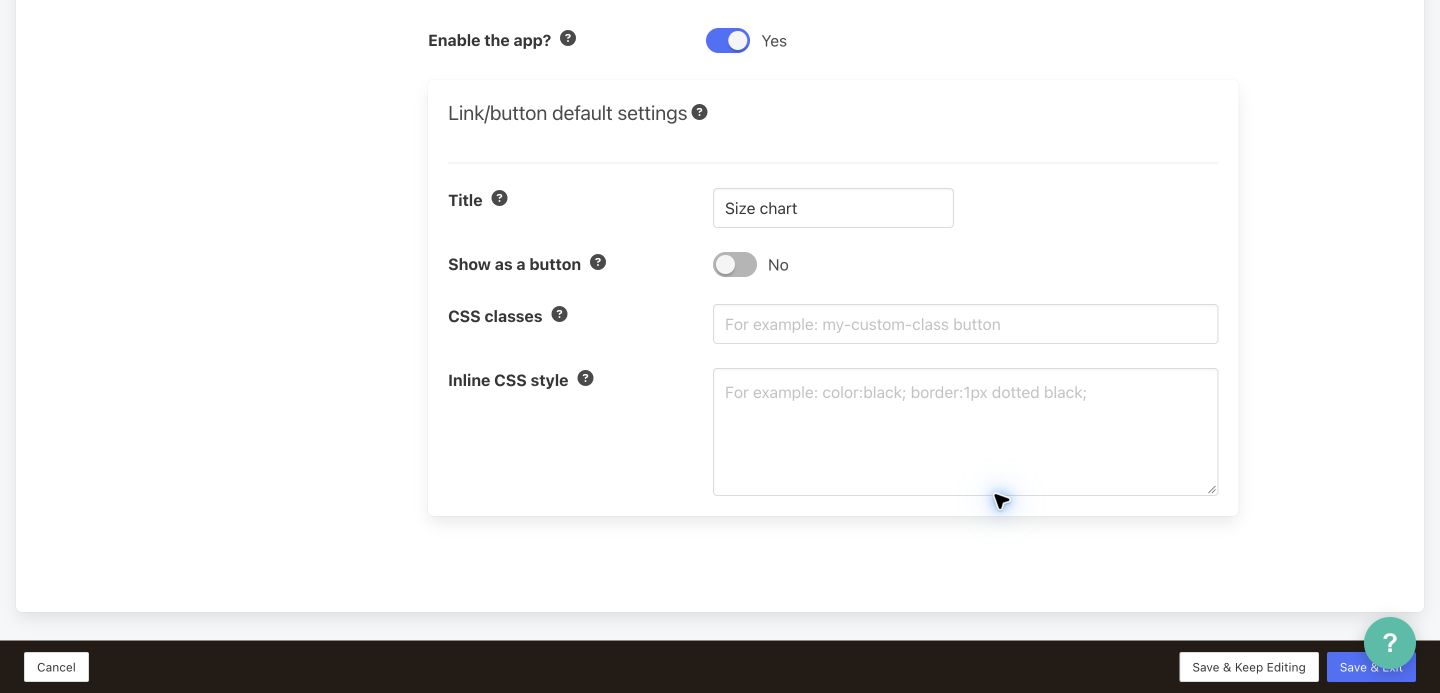
One content item #
- Open the item from Size charts and content items, then choose Display options.
- Use Show as a link/button and open the content item in a popup window on click. or Use both modes when a popup trigger is required. Direct-only display does not use these trigger controls.
- Leave Use global on to inherit store defaults. Turn it off to show and edit the item’s own trigger settings. Review all the revealed fields before saving.

2. Change the visible text and link/button appearance #
In the appropriate global or item-level settings, enter plain text in Title, such as Size guide, Fit & measurements or Care information when that describes the popup. Do not change Content item name expecting it to rename the shopper-facing trigger.
Set Show as a button to Yes for button presentation or No for a link. The switch changes appearance; both open the same chart on click. Button presentation uses the theme’s button styles, so a custom theme may look different or need CSS. Turning it off does not remove custom classes or inline styles—review those too if it still looks like a button.
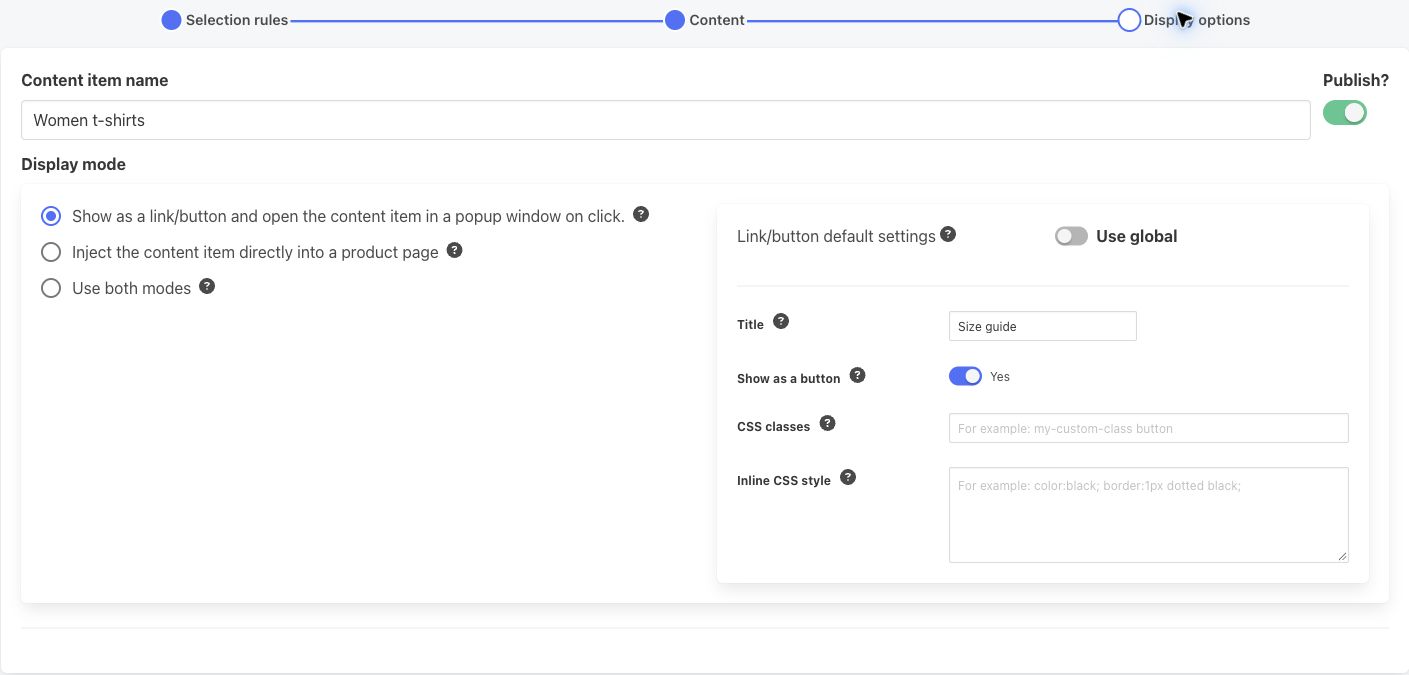
These are the current built-in appearance controls. Colors, spacing and borders can be set with Inline CSS style or with stylesheet rules attached through CSS classes; there is no separate color-picker panel in the inspected form.
3. Add a small inline style, if needed #
For a simple change that does not require a theme-file edit, paste CSS declarations into Inline CSS style. Separate declarations with semicolons. Do not include a selector, braces, HTML or <style> tags. For example:
color:#1f2937;
background-color:#ffffff;
border:1px solid #374151;
border-radius:4px;
display:inline-block;
padding:8px 12px;
font-size:16px;
line-height:1.4;
text-decoration:none;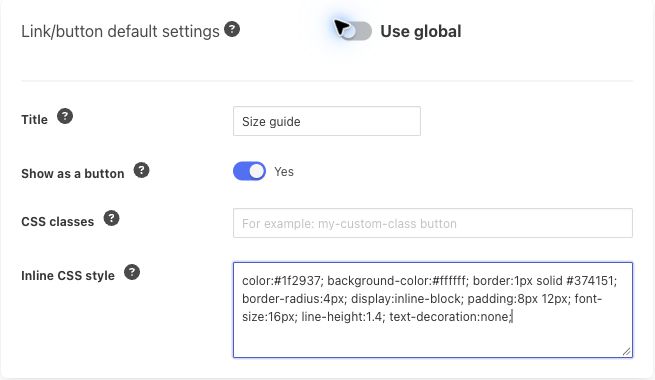
This example sets a dark label on a white background without changing placement or stacking. Adapt it to your branding and check normal, hover and pressed states. Inline styles cannot define :hover or :focus-visible rules. For those, use the stylesheet approach below. Keep a copy of your original field value so you can restore it.
4. Use a custom class for stylesheet rules #
For theme styling, hover states or responsive rules, enter prikid-trigger-custom in CSS classes. Enter class names only, without a leading dot; separate several names with spaces. Adding a name does not create any CSS—it connects the trigger to rules loaded by your storefront.
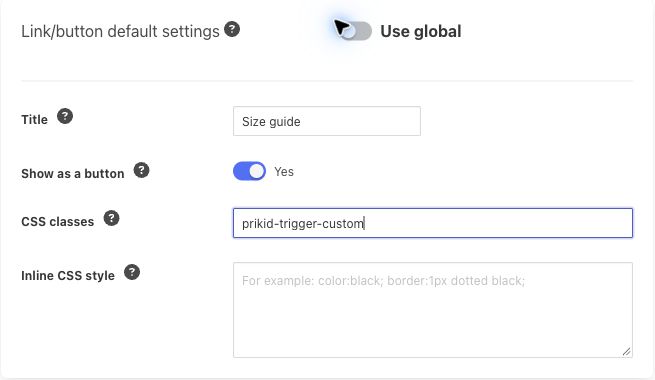
Back up or duplicate the active theme before a theme edit. Use the custom stylesheet route supported by your theme, or ask the theme developer to install the rules. If you do not have theme access, use a small inline change or request help; do not rely on the old Footer Scripts instructions as a universal CSS installation method.
The current trigger has the class prikid-size-chart-trigger-button. Combining it with your custom class keeps this example scoped to those PRIKID triggers:
/* Only PRIKID triggers with this custom class */
.prikid-size-chart-trigger-button.prikid-trigger-custom {
  display: inline-block;
  padding: 8px 12px;
  border: 1px solid #374151;
  border-radius: 4px;
  background-color: #ffffff;
  color: #1f2937;
  font-size: 16px;
  line-height: 1.4;
  text-decoration: none;
}

.prikid-size-chart-trigger-button.prikid-trigger-custom:hover,
.prikid-size-chart-trigger-button.prikid-trigger-custom:active {
  background-color: #1f2937;
  color: #ffffff;
}

/* Visible outline when the trigger receives keyboard focus */
.prikid-size-chart-trigger-button.prikid-trigger-custom:focus-visible {
  outline: 2px solid #1d4ed8;
  outline-offset: 3px;
}
This is a starting example, not a tested fix for every theme. Publish the theme changes through its normal workflow and confirm the browser actually loads the updated stylesheet. If moving colors or borders from inline styles to CSS, remove overlapping declarations from Inline CSS style; they can override the stylesheet, including hover colors. Existing theme rules with higher priority or !important may still win.
Avoid broad selectors such as a, .button or button, blanket !important, and arbitrary high z-index values. Keep theme focus indicators. A CSS focus rule does not make a trigger keyboard-focusable or add keyboard activation; if keyboard operation fails, ask support or the theme developer for a functional adjustment.
5. Save, publish and check the product page #
- For store defaults, save with Save & Keep Editing or Save & Exit. For item overrides, enable Publish? and click Save & Publish. With Publish? off, Save as draft keeps the item unpublished.
- Reopen the saved item to check Use global, Title, button appearance and any CSS values. In Selection rules, use Preview to confirm the intended product matches.
- Open the actual product URL on the correct storefront after reloading. Check the exact label, normal/hover/pressed colors, readable size and spacing, and whether a click or tap opens the expected chart. Test keyboard operation as well.
- Check desktop and mobile, another intended product, an excluded product, and unrelated storefront links/buttons. If changing a global default, check representative items using it and an item with its own override.
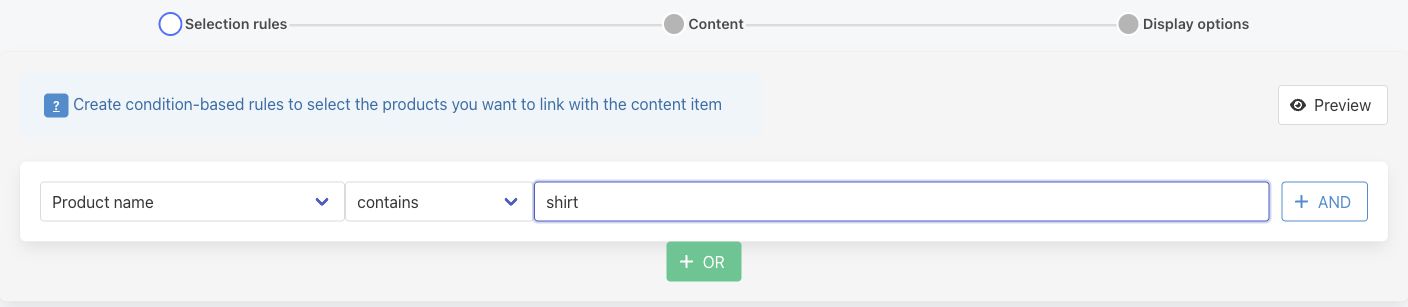
If targeting is wrong, follow doc #6381: product targeting and matching rules. If several items match the same product, review them before assuming each will receive a separate label or popup. Changing a trigger’s style or duplicating its placement does not create independent popups.
6. Troubleshoot a missing, obscured or unclickable trigger #
Check configuration and installation first #
- No trigger: confirm the item is published, Preview includes this product, and the saved mode includes a popup trigger. Check App → Settings → Main settings → Enable the app using the screenshot in step 1.
- Old text or style: confirm you edited the correct item/store, saved the form and chose the intended Use global setting. Reload the live product page, then check the stylesheet actually delivered to the browser. A saved source file alone does not prove it is live.
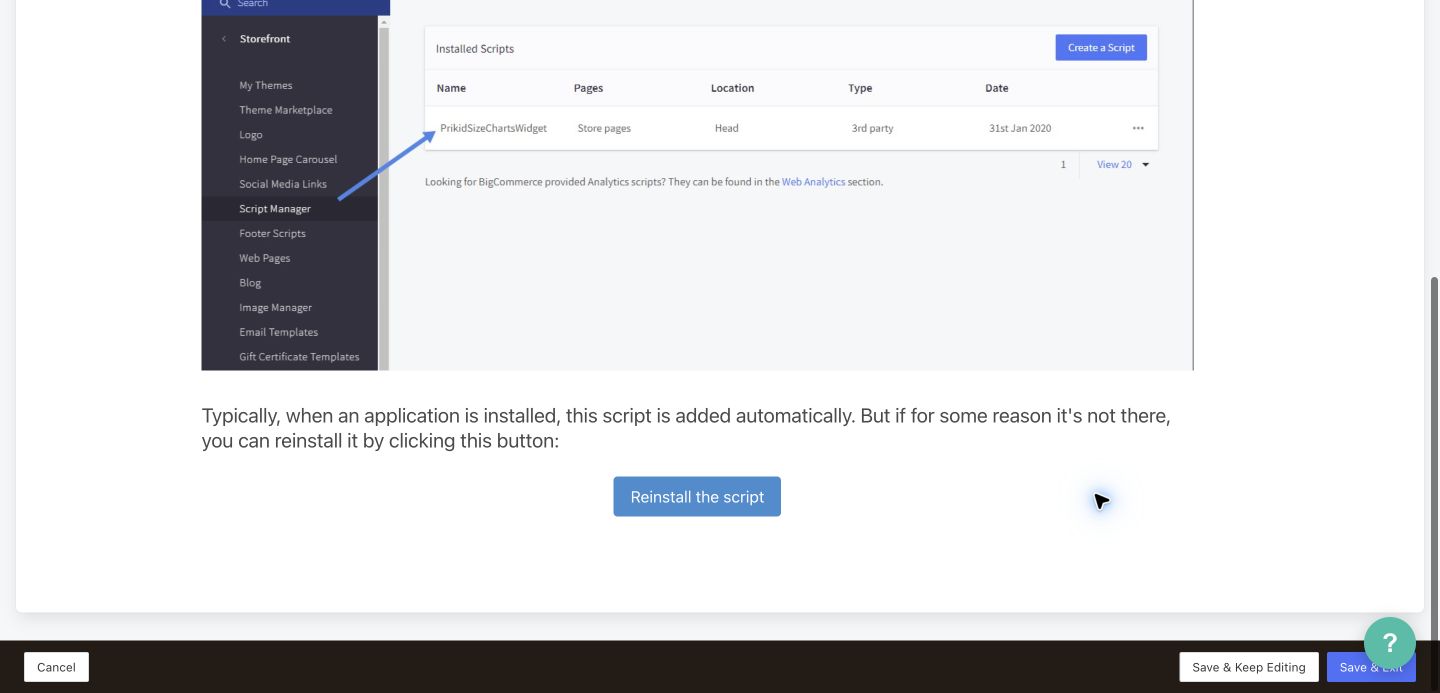
- Installation: review App → Settings → Script installation. The app normally installs its script automatically in BigCommerce Script Manager; if missing, the form provides Reinstall the script. Check installation first and avoid duplicate scripts.
Then separate visibility from click behavior #
- Hidden: ask the theme developer to inspect the trigger,
.prikid-size-chart-button-placeholderand their parent containers fordisplay:none, hidden visibility, zero opacity, zero sizing or mobile-only rules. Check the actual product template; another product/category may use a different one. Styling the trigger cannot reveal a hidden parent. - Obscured or clipped: check sticky controls, overlays, container height and
overflow. Fix the specific layout conflict instead of raising the trigger above every cart, menu or dialog. - Visible but unclickable: check whether an invisible element covers the trigger, whether
pointer-events:noneaffects it, and whether storefront scripts fail or intercept the click. A change from link to button presentation cannot repair these causes. - Text disappears on hover: inspect both foreground and background colors in the loaded normal/hover/active rules, including inline declarations and theme button classes.
- Duplicate or misplaced triggers: inspect repeated placeholders and the active template. Use the placement guide instead of hiding duplicates with a global CSS rule.
For insertion locations, placeholders and custom-theme compatibility, see doc #6416: placement and theme compatibility. A custom theme needs individual verification. These instructions do not establish native multi-storefront, secondary-storefront or Catalyst/headless compatibility; confirm the specific setup with support.
7. Know when to ask for help #
Self-service: change Title, Show as a button, Use global, CSS classes and Inline CSS style; save/publish the item and verify its matching products. Make theme changes yourself only when you have the access and understand that theme’s publication workflow.
Support or theme developer: request help with custom placement, hidden parent containers, overlapping elements, conflicting styles, keyboard behavior or script/integration problems that remain after the checks above. Support investigation is not a promise that every custom theme can be made compatible.
Use Contact PRIKID support in the app or open a support ticket. Include the store and affected product URLs, item name, product name/SKU, expected trigger text/style, Use global and Publish? states, Display options and matching Preview screenshots, theme name/version/customizations, desktop/mobile screenshots and the CSS you changed. Say which other products work and which installation checks you completed. Do not send passwords or API keys.


