
Create a general-purpose popup for selected BigCommerce product pages, then choose automatic opening, a shopper-clicked button, or both.
Use a general popup for product information such as care instructions or a delivery notice. Start from the Popups tab. This is separate from a size chart/content item displayed in popup mode: general popups have their own event, frequency and button-placement settings.
This guide covers product pages in a BigCommerce storefront running the PRIKID script. Custom themes need individual checks. Do not assume these steps provide native multi-storefront, secondary-storefront, blog-page or Catalyst/headless support; ask support to confirm your specific integration first.
Click or tap a screenshot to enlarge it, then use the viewer’s zoom and pan controls for small labels. The sample names, products and settings illustrate the controls; use values appropriate to your store.
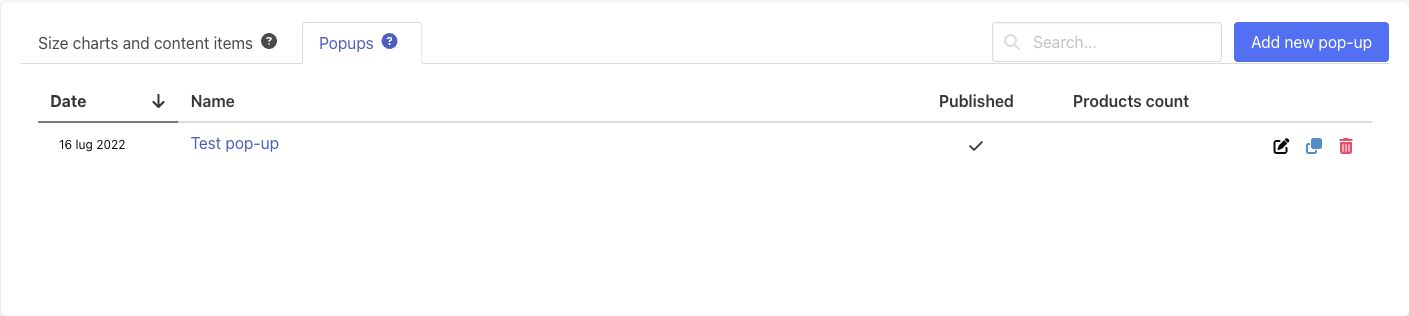
1. Create a popup and check its products #
- Open the app dashboard and select Popups. Click Add new pop-up, or open an existing popup to edit it.
- The editor follows Selection rules → Content → Display options. Begin with Selection rules to choose which products should receive the popup.
Use Preview in Selection rules and check the intended product name/SKU. An empty result means no products currently meet the rules. A selected product name alone is not proof of a match; stale or changed catalog data can require attention. Follow doc #6381: product targeting and matching rules for detailed conditions, AND/OR groups and matching checks.
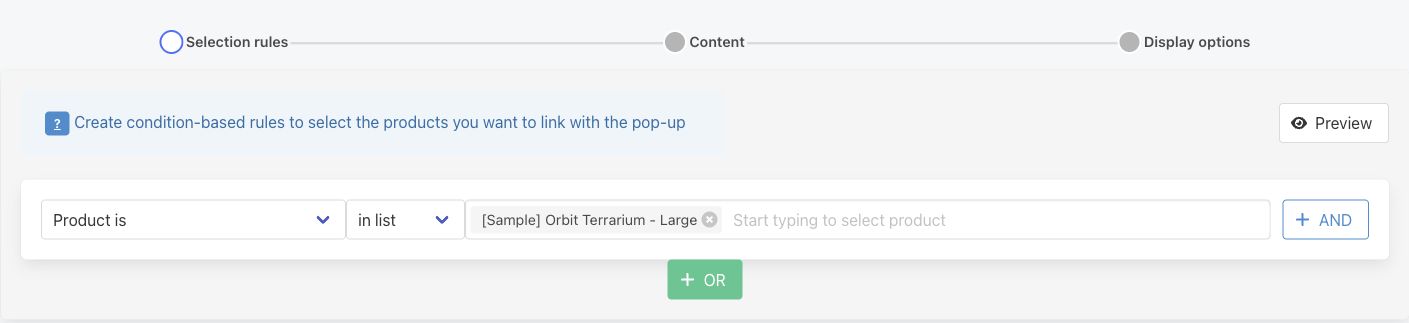
Preview checks matching products, not whether the storefront script is installed or a button can be inserted into your theme. Later, test both an included product and an excluded product on the actual storefront.
2. Add the popup content #
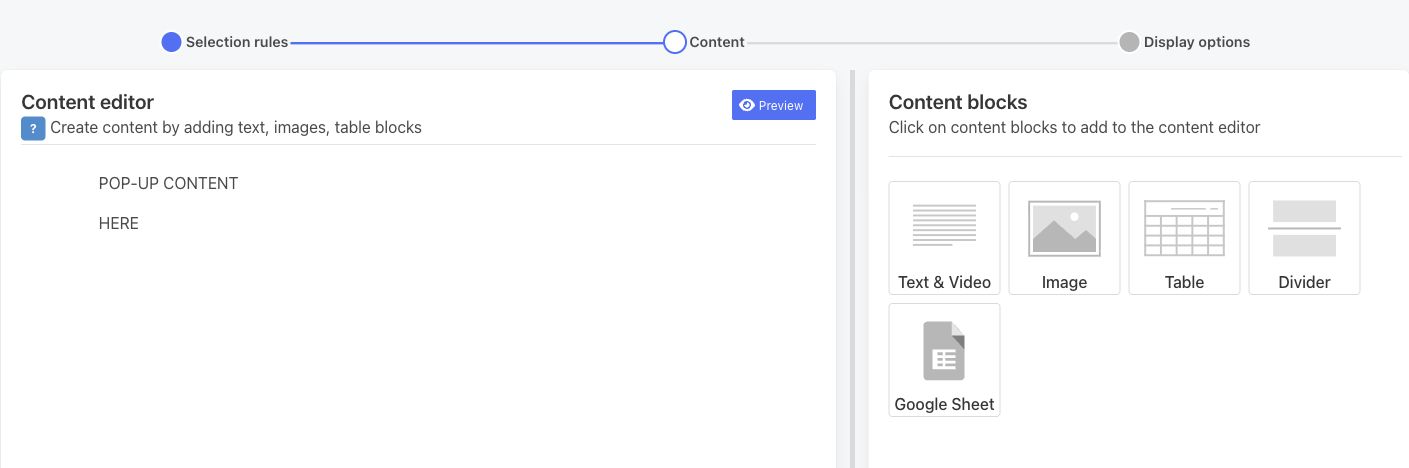
- Open Content. Add or edit the blocks you need: Text & Video, Image, Table, Divider or Google Sheet. Replace sample text and remove unused blocks.
- Use the Content editor’s Preview to inspect the content, then continue to Display options. Editor Preview does not test automatic events, frequency cookies or live button placement.
3. Choose how the popup opens #
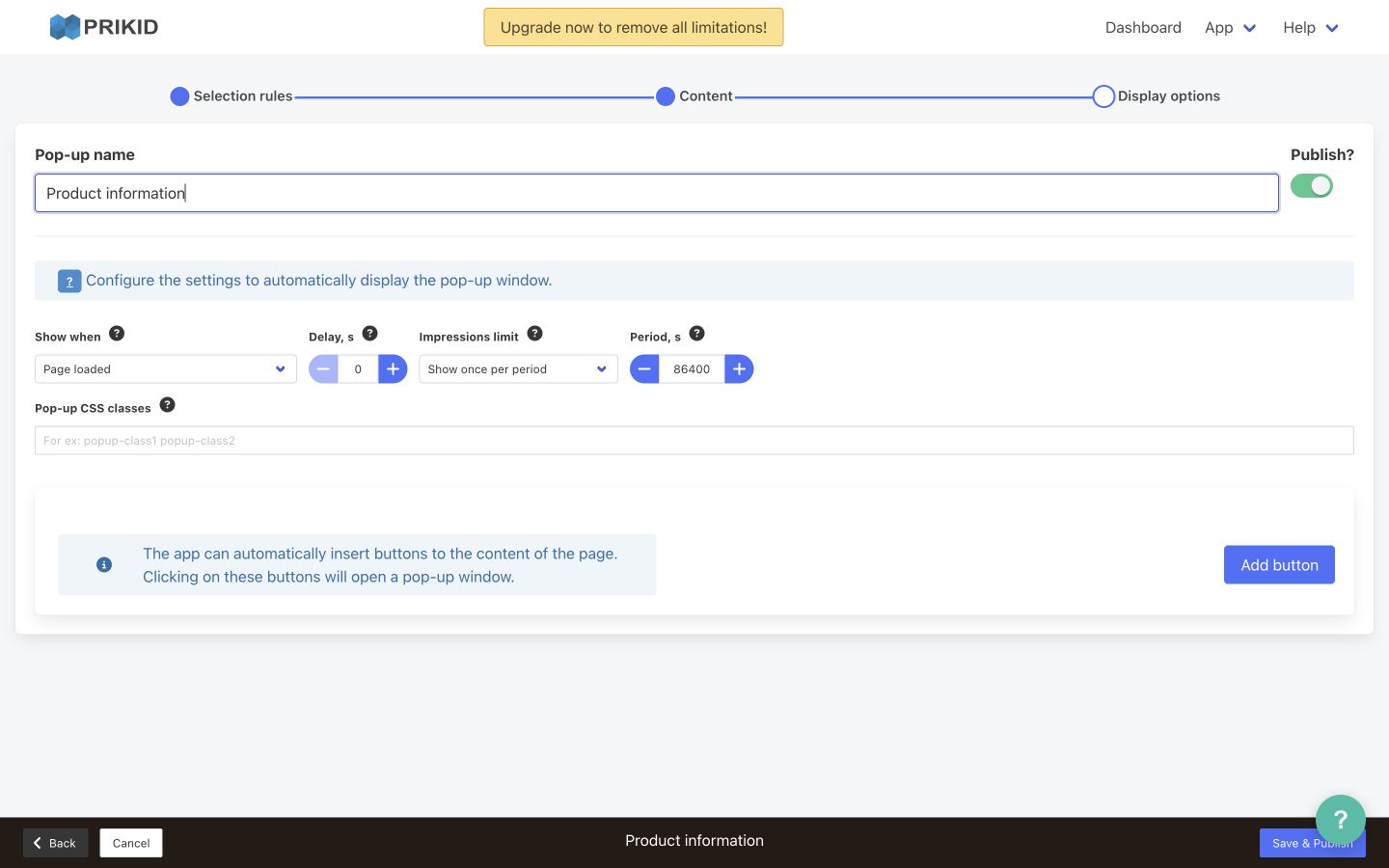
- Automatic only: select an event in Show when and leave the button list empty.
- Button only: set Show when → Off and add at least one button using step 5.
- Both: select an automatic event and add a button. The button gives the shopper a way to reopen the same popup after closing it.
Off disables automatic opening; it does not disable configured buttons. Off with no buttons gives the shopper no opening method. An automatic event with no buttons does not create a trigger button by itself.
Automatic events and delay #
- Page loaded: schedules opening when the widget initializes on the product page.
- User starts scrolling: responds to a scroll event.
- User scrolled to the bottom of the page: requires reaching the page bottom.
- User scrolled back to the top of the page: requires a scroll event at the top; simply loading an unscrolled page is not the same event.
- User leaves a page: uses the pointer leaving the document at its top edge. It is not a guarantee of opening on every navigation, browser close or mobile gesture. Use another event or a button when mobile access matters.
Delay, s is the wait after the selected event, in seconds (0–300). A five-second delay begins after the event occurs, not necessarily five seconds after page navigation. For a simple first test, Page loaded with a short delay is easier to observe than an exit or scroll condition.
4. Set frequency and test repeat opening #
Impressions limit applies to automatic opening. Choose the behavior deliberately:
- Show once per period: after automatic opening, the widget writes an expiring cookie for this popup and event in the shopper’s browser. It suppresses that automatic popup on matching product pages on the same host until the period expires. Period, s is in seconds: 3,600 = one hour; 86,400 = one day. The current form allows up to 2,592,000 seconds (30 days). Use a positive period for a meaningful waiting interval.
- Show once on the same page: the automatic event opens it once during that page load. Refreshing or opening another matching product page can make it eligible again; it is not a permanent “never show again on this URL” setting. The Period field is hidden in this mode.
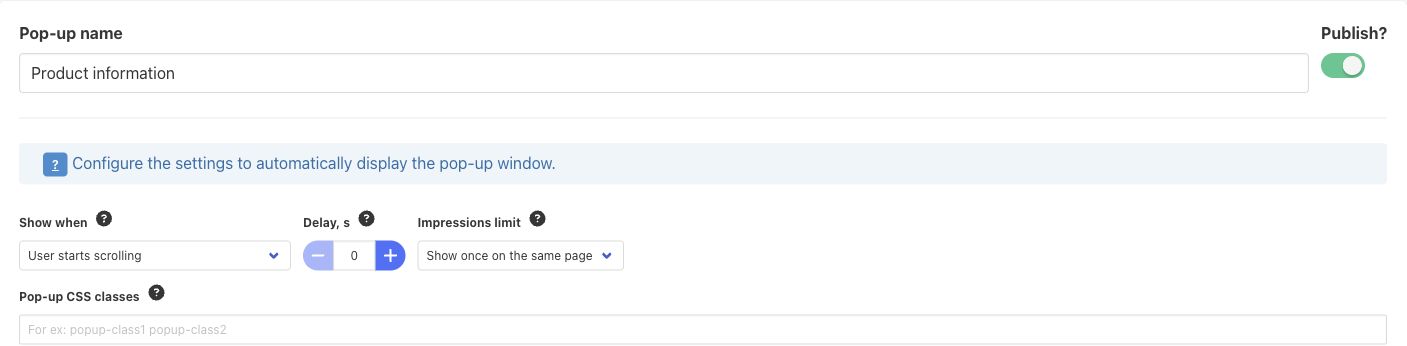
Why it may not reappear: closing the popup or refreshing the page does not remove an unexpired once-per-period cookie. This is a browser/host-specific limit, not a cross-device customer account limit or simply “once per login session.” A new browsing context can behave differently; browsers that block or remove cookies may not retain the limit.
To check automatic opening again, wait for the configured period or use a fresh private browsing session that can load the widget. Trigger the selected event and wait for the delay. Changing the saved Period value should not be relied on to shorten a cookie already set in that browser. Avoid repeatedly changing live customer-facing settings just to force a test.
When a button is configured, its click opens the popup directly without using the automatic-event delay or impression-cookie check. You can test that button separately even when the automatic popup is suppressed. A successful click does not prove the automatic event and frequency settings are correct.
5. Add a button and choose its insertion point #
For button-only opening, first select Show when → Off. For both opening methods, keep your chosen automatic event. Click Add button to create a row; the current form allows up to ten rows.
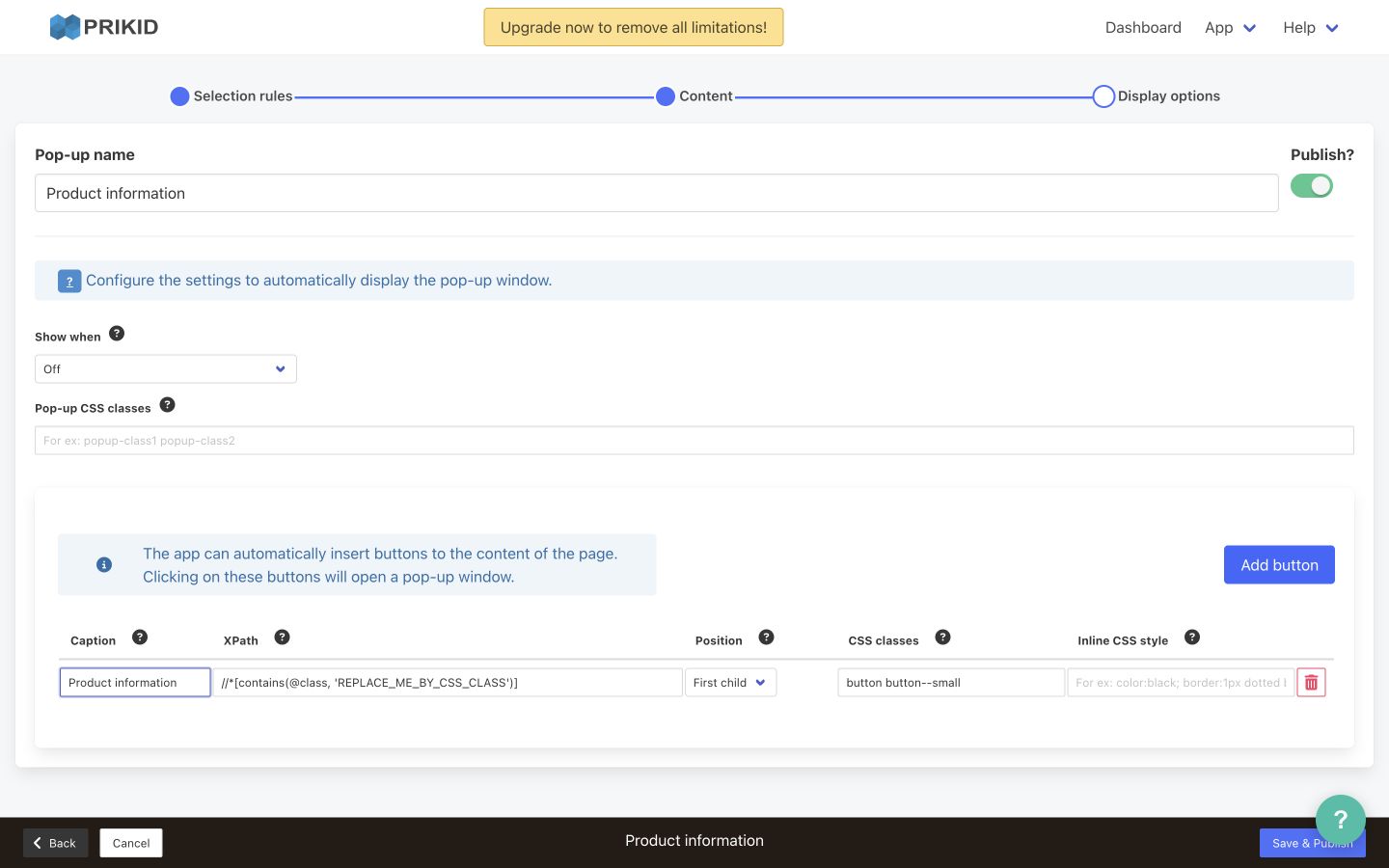
- Caption: enter the shopper-facing label, for example “Product information.” Pop-up name is the internal item name; it does not replace Caption.
- XPath: identify the product-page element into which the button should be inserted. Replace
REPLACE_ME_BY_CSS_CLASSin the supplied template with the real container class, without a leading dot. This is XPath, not a CSS selector. - Position: First child puts the button at the beginning inside the matched container; Last child puts it at the end inside that container. It does not mean before or after the entire container.
- CSS classes and Inline CSS style: optionally adjust the trigger appearance using styles delivered by your theme. See step 7 for scope and compatibility checks.

For example, only if your live product description container actually uses the class productView-description, the supplied template becomes:
//*[contains(@class, 'productView-description')]Confirm the expression matches the intended visible container in your theme. A valid XPath that finds no element will insert no button. An expression matching several elements can insert several copies. Content added by theme scripts after insertion may also need a custom integration. Ask support or your theme developer to build a more precise expression if you are unsure; send a product URL and a screenshot marking the desired position.
All buttons configured on one popup open that popup’s same content. Extra button rows do not create independent popups. Remove an unwanted row with its Remove control rather than hiding it using broad theme CSS.
6. Save, publish and verify the storefront #
- In Display options, enter a meaningful Pop-up name. With Publish? off, the action is Save as draft. A draft does not appear on the storefront.
- Enable Publish? and click Save & Publish when the content, rules and display settings are ready. Resolve any reported condition or XPath errors. A syntactically valid XPath still needs a live placement check.
- Reopen the saved popup and confirm the published state, event, delay, frequency and button rows. Review Selection rules → Preview again for the intended product.
- Reload the actual matching product URL on the correct storefront. For automatic opening, trigger the selected event, wait for the delay and account for any existing frequency cookie. For button opening, click/tap the visible button and check the expected content.
- Close the popup and verify the close control remains visible and usable. Test desktop and mobile, another intended product and an excluded product. With both methods, test automatic opening and reopening by button separately.
The screenshot in step 3 shows Publish? and Save & Publish. Changing controls without saving does not update the live popup. Targeting Preview and Content Preview serve different purposes; neither replaces a storefront check.
7. Check styling and theme conflicts #
Pop-up CSS classes applies to the popup window. Button-row CSS classes and Inline CSS style apply to that button. Enter class names separated by spaces; class names only work when their CSS is defined and loaded by the active storefront theme. Use that theme’s supported stylesheet and publication workflow; not every theme has a file named custom.css.
For trigger styling principles and the separate size-chart link/button controls, see doc #6428: trigger text and styling. For this general popup, use Caption and the per-row fields shown above. The size-chart guide’s Title, Use global and .prikid-size-chart-trigger-button example are not this popup’s controls or selector. General-popup triggers use .prikid-popup-trigger-button; their inserted wrapper is .prikid-popup-button-placeholder. Do not paste the size-chart CSS example unchanged.
- Scope each theme selector to the intended popup or trigger; avoid site-wide button/link rules. Check normal, hover and keyboard-focus appearance, and test keyboard operation rather than assuming a button-like appearance makes it accessible.
- If a button is hidden, inspect it, its wrapper and its parent containers for
display:none, hidden visibility, zero opacity or size, and mobile-specific rules. If it is visible but unclickable, check overlays,pointer-eventsand script errors. - If a CSS edit has no effect, inspect the stylesheet actually loaded by the live page, including the active theme and cache. A saved source file alone does not establish that the rule reached the browser.
- Check popup width, content overflow, overlay and close control together at both widths. Keep mobile-only adjustments within their intended breakpoint. Historical support fixes for blur, width or close-button positioning were theme-specific; they are not universal snippets.
8. If the popup never opens #
Configuration checks you can do yourself #
- Confirm the correct popup is saved and published, has content, and matches the product in Selection rules → Preview. Check the storefront and product URL you are actually viewing.
- For automatic opening, check Show when, event completion, Delay and Impressions limit. Off prevents automatic opening; an unexpired period can explain repeated tests with no popup.
- For button opening, check the row’s Caption, real XPath and insertion Position. A missing button is not caused by the automatic impression limit. Check whether the target container exists on this product template.
- Open App → Settings → Main settings and confirm Enable the app? is Yes. The Link/button default settings below it belong to size charts/content items, not general-popup button rows.
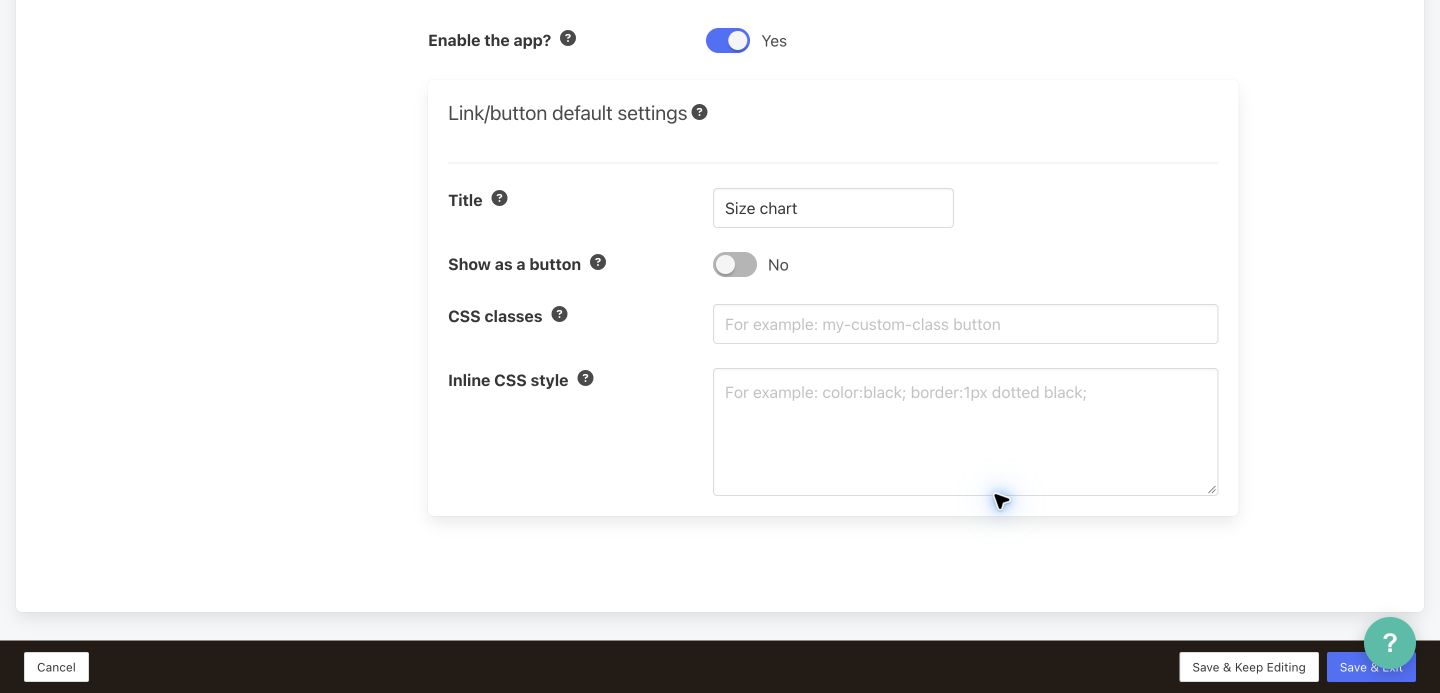
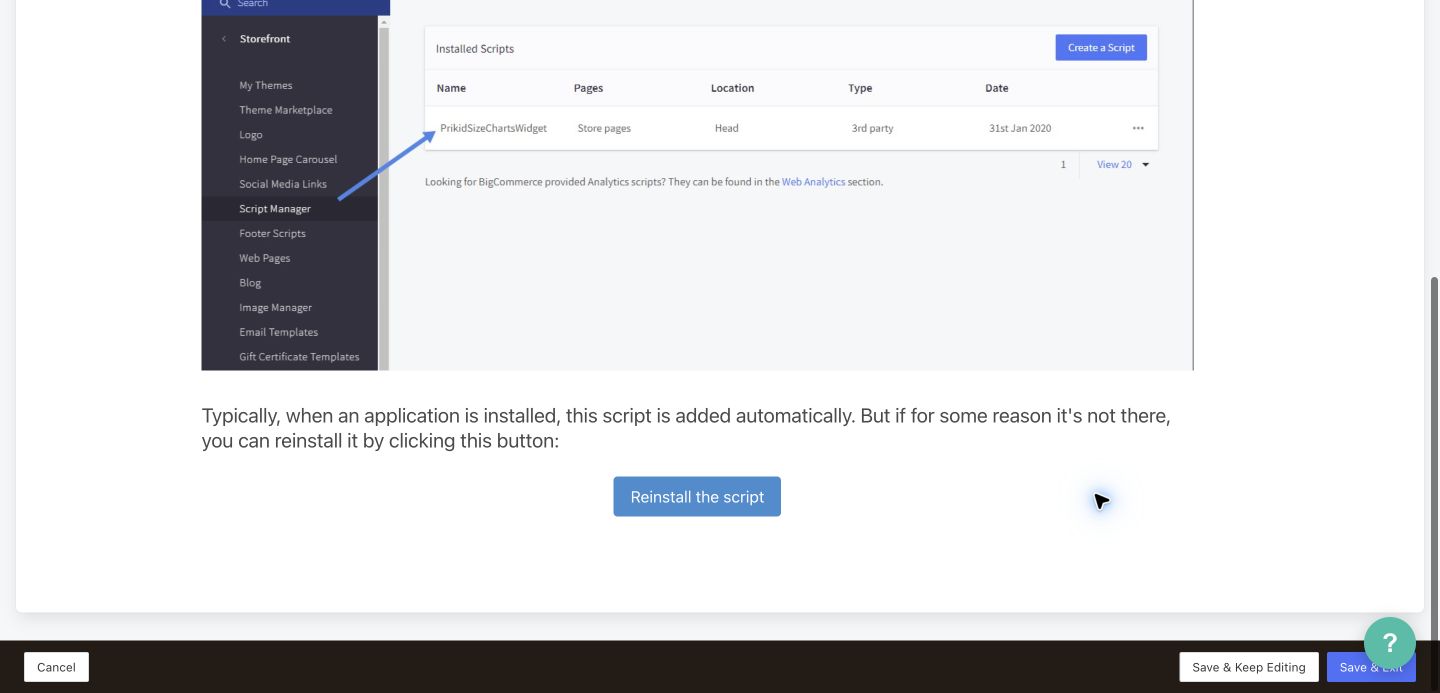
Review App → Settings → Script installation and the script in BigCommerce Script Manager. The app normally installs it automatically; the current tab offers Reinstall the script if it is missing. Check first and avoid duplicate installations. If present but failing, record the browser error and ask support rather than repeatedly reinstalling.
When support or a theme developer is needed #
Ask for help when matching or saved state looks correct but the live script fails, the XPath needs custom placement, the theme hides or obstructs the trigger, styling breaks the close control, or desktop/mobile behavior differs. Catalog/matching problems that remain after the checks in doc #6381 can also need support investigation. Requests for other page types, secondary storefronts or headless integrations need specific feasibility checks; support intervention is not a compatibility guarantee.
Use Contact PRIKID support in the app or open a support ticket. Include the store and affected product URLs, popup name, product name/SKU, theme/version and customizations, Selection rules Preview and Display options screenshots, the XPath/button row, desktop/mobile screenshots, and the expected event/delay/period. Say whether it opened once before stopping, whether the button exists and works, which other products work, and whether a fresh browsing session changes the result. Do not send passwords or API keys.


